Mechanics Beats Theory
My friend was frustrated on the other end of the phone.
“I just don’t understand how my WordPress (.com) blog can be a website,” she said.
I briefly explained the difference between posts and pages, and the way different themes worked to display information. Throughout my monologue she mumbled sounds of a vague and unconvincing understanding. My brilliance wasn’t cutting through her fog.
“It actually really easy to do. You just don’t know the mechanics of the process,” I concluded.
“You hit it on the head!” she said. “I don’t get what steps to take.”
Something clicked for me in that conversation. My friend helped me understand that many people need practical, concrete examples before they can grasp the systems and information flow that many WordPress developers take for granted.
I look forward to playing with new approaches to teaching people learning and teaching styles.
How to Paste from Microsoft Word
During the “21 Tips From the Organizers” segment at WordCamp Detroit, my buddy Anthony talked about pasting from MS Word the “right way.” Someone I met at the conference asked if I knew how to do this.
Sure do!
The Background
When you copy text from Microsoft Word (or a webpage), the clipboard also grabs hidden formatting instructions. This allows you to bring the formatting along with the text when you paste it.
Sometimes (but not always*) these invisible instructions confuse WordPress’ TinyMCE editor and your post “looks funny.” Yes, that’s the technical term.
When it happens, you the HTML view will show extra markup. If you know HTML it’s frustrating and you can clean it up. If you don’t, it’s just frustrating.
So, how do you prevent this problem?
Option 1. Use the “Paste from Word” tool (easier)
- Copy the text from MS Word.
- If your toolbar appears as one row, you need to click the circled icon to expand the “kitchen sink.”

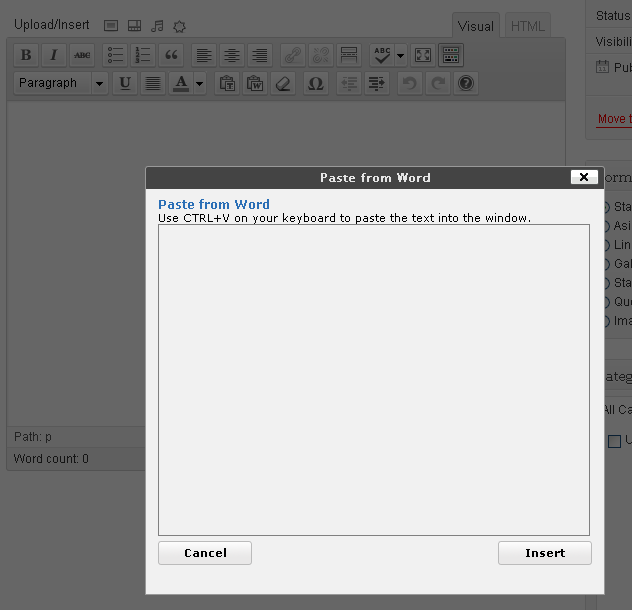
- Click the “Paste from Word” icon in the second row.

A box will pop up. - Click in the box and paste your text there.

- Click “Insert”
- You’re done.
- Copy the text from MS Word.
- Open a basic text editor like Notepad.
- Past the text into a blank text editor.
- Press Ctrl-A to select all the text in the editor.
- Copy the text again.
- Paste the text into the TinyMCE editor window on your WordPress site.
This method is repeatable, reliable, and strips ALL the formatting from the text to be pasted. It takes longer, and sometimes you want to keep your formatting.
If you’re serious about your writing, you might just want to forgo MS Word and take a look at the Full Screen mode.
*I think this was more likely to happen with MS Word 2003 and older versions of WordPress.
What to do if “WordPress can’t create an .htdocs file on my Mac”
One of the first things I wanted to do when I first got my MacBook was to install WordPress locally to use it as a development sandbox.
Even after following the tutorial at WP Candy I couldn’t get WordPress to work perfectly on the Mac. I uninstalled MAMP and tried using XAMPP, which I had used successfully on my PC. I had the same problem with both. First, you are not alone. (I was prompted to write this post when an EXPERIENCED developer friend had problems configuring WordPress properly on his brand new MacBook Air.)
After several futile Google searches and digging through the forums (http://wordpress.org/support/) I came up with this solution.
Symptoms
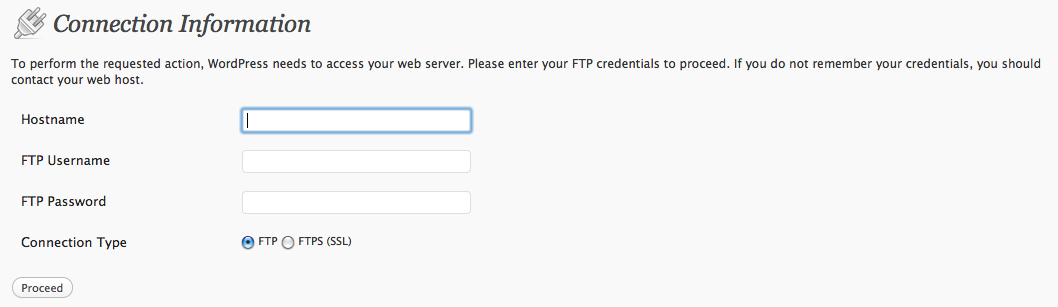
- WordPress asks for an FTP password when trying to update a plugin. It wouldn’t take my login password, so I reverted to doing a manual update. It worked, but it’s not what we want.

- If you try to update your permalinks, WordPress chokes while trying tocreate an .htdocs file. It complains about not having permissions to write to the file:

Solution
Here is how I fixed the problem. I used the terminal to do this (I worked as a Unix Sysadmin for several years). (If there is enough feedback I might do a follow-up on doing it using the GUI an a mouse.)
1. Find the directory where the problem lives:
$ cd /Applications/XAMPP/xamppfiles
2. Check the permissions and ownership on the htdocs folder:
$ ls -l
3. Find the username that your Mac knows you as. In my case it’s icet. I’ll use myuser for this example. Change the user and group of the folder. One command will do it; you will probably need to use sudo.
$ whoami
$ sudo chown -R myuser:staff htdocs
We’re getting closer but Apache still can’t write to the htdocs folder. We need to tell XAMPP to run Apache as someone else
5. Change to the directory where the configuration file lives:
$ cd /Applications/XAMPP/xamppfiles/etc/
6. Make a backup of the configuration file, then change permissions of the configuration file so you can edit it:
$ sudo cp httpd.conf httpd.conf.bak
$ sudo chmod 777 httpd.conf
7. Edit the User and Group lines in the httpd.conf file. I use vim because I’m already at the command line. The Mac’s built-in TextEdit application will work too.
$ sudo vi httpd.conf
7.1. Find the User and Group lines
# # User/Group: The name (or #number) of the user/group to run httpd as. # It is usually good practice to create a dedicated user and group for # running httpd, as with most system services. # User daemon Group daemon
7.2 and change them so it looks like this (replace icet with your username from step 3):
# # User/Group: The name (or #number) of the user/group to run httpd as. # It is usually good practice to create a dedicated user and group for # running httpd, as with most system services. # # User daemon # Group daemon User myuser Group staff
8. Stop and restart XAMPP
That should do it. You have given Apache the ability to write into the WordPress directory. It has worked fine for me for months.
Don’t do this on a production server! It probably introduces several security holes. Find a qualified server expert.
WordCamp Chicago 2011
I was lucky enough to share the stage with some cool people at WordCamp Chicago in July 2011. The slides from my presentation are available for download at http://maxim650.com/wcchi-2011. If/when the video from the presentation becomes available this will be updated with a link.
The before and after sites from the presentation are also available.
Business on a Budget
It would be great fun to start this post with the phrase, “I’m often asked what tools I use as a web developer, so I decided to write a blog post to answer that.” It would also be an outright lie, so I won’t do that.
Tools have been on my mind the last couple days, largely because my laptop just died. Also, writing this post would be an effective way to get another entry in SolidSmack‘s HP EliteBook Giveaway (you can enter their contest until December 19th, 2010 so click the link).

I have seen that machine, and it is beautiful. With a suggested retail price of $4899 it’s a lot more money than most casual users could ever justify, but the cool factor is through the roof.
Since my focus is helping small businesses manage their websites, I will devote a few (dozen) lines of text to hardware requirements.
The Computer
Nearly any modern computer will do, as long as it has a decent (not dial-up) internet connection. If you can run Windows XP or later (and by later I mean Windows 7, not Vista) and run a decent web browser (Firefox, Chrome, Safari, even Opera, but please stop using Internet Explorer) you can manage your WordPress site. (I don’t have any experience with Macs so I can’t tell you how old one has to be before it’s too slow to be effective.)
Yes, a faster processor and more RAM will improve your Internet “experience” but the latest and greatest hardware isn’t critical unless you plan to edit a lot of photos, audio or video to support your website. If you have to buy one, a solid laptop will run you $500 to $600, but a $350 model will do the job. If you are on a really tight budget, a netbook will work, but they have other limitations.
Input Devices
If you are writing a lot of blog posts (and you should be if you intend to promote your business effectively), you will need to be able to enter information efficiently. That means typing and pointing and clicking.
Mouse
I will be blunt: touchpads suck. (Indignant Mac users may rant in the comments section.) Yes, newer ones let you scroll, but click-and-drag and right-click actions are hard to perform. Sleeves and palms brush them and screw up your typing. You shouldn’t have to concentrate on the mechanics of performing actions, you should just be able to DO them.
If you are working with a laptop or netbook, you must get a real mouse.
Just order plain coffee instead of a latte for four visits and spend the $10 on an optical mouse with retractable cord. It will pay for itself in under an hour (unless you value your time at the U.S. minimum wage from 1987, in which case you should figure about three hours).
Keyboard
If you must take the bargain basement route, keep in mind that a netbook keyboard is smaller than a standard keyboard. It will take a touch typist a while to adapt to the smaller key spacing. Unless you are extremely comfortable with your keyboard or you do 100% of your work in coffee shops, get a keyboard to keep at your workspace.
I have spent enough years at computers that I have become a keyboard snob. (Most laptop keyboards put the delete key in the wrong place). I keep a full-size keyboard in the car, and yes, I do carry it into the library with me. (I’m more concerned with productivity and less worried about looking like a dork.) You don’t need a fancy ergonomic keyboard with buttons to launch email, control speaker volume, or start the espresso maker. Any decent office supply store will have a basic keyboard for $12 to $15.
Spend that extra money on yourself. You’re worth it.
The Monitor
If you think of your computer like a kitchen for concocting blog posts, then the monitor is your counter space. Can you imagine trying to cook a full-blown Thanksgiving dinner in a kitchen where the only counter space is 18 inches between the stove and the refrigerator? It can be done, but it’s not easy and it isn’t fun.
I have friends who do amazing amounts of work on a netbook, but they struggle with it:
WordPress can work with 1024 x 768 resolution in most browsers, but it’s tough. The menus on the left take a lot of space, and the editing box for writing posts is eclipsed by the control boxes on the right. There are workarounds, but the effects can range from mild annoyance to near-defenestration.
Just as adding counter space to your kitchen makes it easier to do more, adding screen space makes it easier to manage your blog.
If I’m a keyboard snob, I’m a monitor elitist.
You might be tempted to jump on the first deal you find for an inexpensive flat-panel LCD monitor. Before you plunk down your plastic, I suggest you check an under-rated specification: vertical resolution. Why? These screen shots show what writing this post would look like on different displays.
Note: Some images were cropped slightly to make up for the Windows menu bar. Also, other browsers (this is another reason to STOP USING INTERNET EXPLORER) leave even less room for your page, even before adding extra bloatware like the Yahoo! or Google toolbars.
Although not quite evil, monitor manufacturers have been doing something not very nice to boost sales: they dumb down displays to make them look like they are good for DVD movies. Yes, movies do fit nicely on them, but they’re less than optimal for creating content.
The reality is that most new widescreen monitors make your display a lot wider, but not much taller. If you can afford it, get a monitor with more vertical resolution. You will spend less time scrolling and more time doing important things.
Conclusion
Your website and blog should work for you, not the other way around. If you don’t live on the computer or edit photos or video for a living, you shouldn’t spend a lot of money on a computer. Sure, toys like HP’s new EliteBook make me drool, but I don’t do high-end CAD these days. A few dollars spent sensibly can help your website work for you without breaking the bank.