Three Tips for WordPress Site Maintenance
As software goes, WordPress is pretty stable and reliable. However, it relies on computers and it runs in a world of people. Things can go wrong. An internet connection could fail during an update, there could be a hardware problem with your server, your site could be hacked, or you could just plain break something while playing with new features (I do this more than I care to admit).
Fortunately, you can improve your security and gain peace of mind. These easy-to-use (and free!) tools and techniques will help.
1. Back Up Your Site
Just as you have an homeowner’s insurance for your house (or renter’s insurance for your apartment), you should have a policy for your website as well. There are two pieces of a WordPress website, and they both need to be backed up: the database and the installation.
The database contains the content (posts, comments, and pages, and information about your site configuration). The installation consists of the WordPress software, themes, uploads (like pictures or mp3 files), and plugins.
A weekly backup is sufficient for many sites, but if you add content often you might want to do it daily. Some large sites with multiple authors and aggressive publishing schedules will back up hourly.
I recommend enabling the email options in the plugins below to give yourself a little extra security. If you don’t want to clutter your inbox, set up a rule or filter to move them into a separate folder. You could also create another email account (gmail is good for this) and direct your backups to that.
Back up the Database
The WP-DB-Backup plugin is a useful tool. In addition to scheduling your database backups, it lets you create a full database backup on demand and download it to your computer. It also lets you decide whether to include additional tables (that other plugins may install).
Back up the Installation
I like the WordPress Backup tool. It lets you schedule backups on an hourly, daily, or weekly basis. It guards your uploads, themes, and plugins by creating separate zip files of each type of content and storing them in a directory on your site. Again, I suggest turning on option to email a backup to yourself. (If you have a lot of images, your uploads backup file can quickly grow too large for email.)
I always back up a client’s database and installation before I start any work. It’s cheap insurance against the little things that can go wrong.
2. Keep WordPress and Plugins Updated
WordPress is great, but it isn’t perfect. There are bugs, developers keep adding features, and hackers come up with new ways to attack your site. Updates fix bugs, patch holes in security, and add new features.
This became easy with newer versions of WordPress. If you have an older version (before WordPress 2.7) it’s more involved (you should call me, I can help).
I could go into a lot of detail about it, but I’m lazy and Wendy Cholbi just wrote about that (with a video!) last week.
3. Hide Your Dust with Maintenance Mode
Sometimes a store will put up a sign that says “Pardon Our Dust” while they are remodeling. Did you know that you can do just that with WordPress?
Adam Warner goes into detail about Maintenance Mode, a great trick that many WordPress users don’t know about. It lets you “hide” your site to visitors while you work on it. I have used the tool successfully (and probably should more often). If you are new to WordPress, that article is worth a look.
What’s the takeaway? You put a lot of time and energy into your website. These tips can help you protect your investment and reputation.
Theme Selection Resource
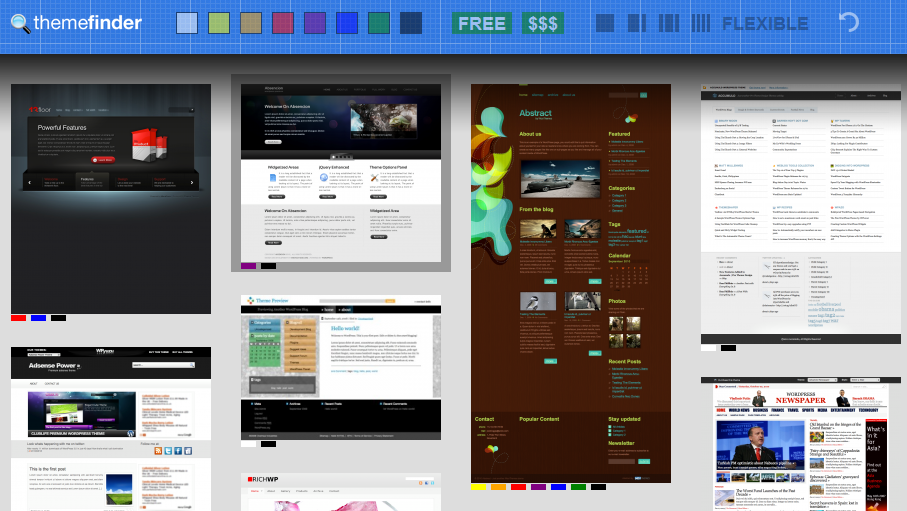
The people at WP Candy have put together a great tool for helping people find WordPress themes. ThemeFinder lets you do a quick visual search by color, layout, and price (free or paid). You simply select filters from the top of the screen and the tool highlights thumbnails that fit your criteria. Click any link to view a larger version of the them at the author’s site.
It’s not an inclusive list by any stretch, but I think they did a good job focusing on quality. They include work from several theme shops that I didn’t know about. It’s a fun tool, and it’s definitely worth a look.
Theme Selection Presentation at WordCamp Detroit
I presented about picking a WordPress theme at WordCamp Detroit in October 2010. The videos from this finally started hitting the web. You can get the slides from the presentation (with a few enhancements) to click along as you watch the presentation below.
Thanks to the great people at Coefficient Media for recording this.
The Two-Dollar-Bill Problem
Do you remember when the $2 bill was reissued? My grandmother thought they were a big deal. In fact, I still have the one she gave me for my birthday, complete with a postage stamp and cancellation code showing it was one of the first run.
A lot of businesses wondered what to do with it. The drawers in the cash register were designed to hold bills in denominations of $1, $5, $10, and $20. Where would the $2 bill go? For whatever reason, the $2 bill did not become ubiquitous so it was never a problem. Now people just hide them under the tray with the coupons and the Benjamins.
Some WordPress users face a variation of this problem. A friend called me to ask, “I created some subpages on my site, but they don’t show up in the menus at the top. How do I turn that on?”
I replied, “You can’t.” The theme he chose was never coded to support subpages. It doesn’t have the “slots” necessary to display that information from the site database.
There are two ways to fix this.
- Change your theme. Find and install another one that supports multiple levels of menus. Be careful, some only take one or two levels. If you aren’t sure, test it before you commit.
- Modify the existing theme. This requires some coding skills, and few people are equipped to try that. Depending on the theme and what is involved, it could take a couple of hours. If you choose this route, be prepared to pay a pro.
The lesson to be learned: Don’t fall in love with a theme, free or otherwise, before you know whether it will handle a $2 bill.


Do you want my two cents here?
Posted by TJ on August 22, 2010 · Leave a Comment
“It just doesn’t feel right to me,” didn’t seem like an adequate response. I struggled with it for a little while, and here are my thoughts on the subject.
Have you ever noticed the weekly flyer displayed at the front of a Target store? Would you expect to see comments scribbled on the wall below the ad? Imagine the flyer was posted Monday morning, and these comments were posted by 3 PM:
Maybe the plumbing problem is patched within 15 minutes and new stock is scheduled to arrive Tuesday morning, but the comments are stuck there until the next week’s specials can be posted.
I see pages on a website like that flyer. As the website owner, you are well within your rights to delete (or not approve) comments at any time.
For those of us who think too much, this could spark an ethical debate: Should you approve (or delete) bad comments? What if a problem were fixed immediately, or a product or service has been discontinued? Are the comments still relevant? Should you delete them?
I would rather avoid the hassle (and the questions).
Blog posts, on the other hand, provide a natural opportunity for discussion. I think of them more like a conversation with someone at the customer service counter. There is a specific context. You may be glad that a painful discussion fades away and loses impact as new posts are added. The reverse can also happen, where the record can turn into a testimonial for your business.
You will note that comments are disabled on pages on my site. I will happily accept comments below.
Filed under Business Lessons, Communication, WordPress · Tagged with blog, business, comment, strategy