Posted by TJ on February 3, 2011 · 3 Comments

For the uninformed, A VPS has hidden dangers
You have a successful website (or blog).
Congratulations!
You installed WordPress, and found a cool theme.
You figured out plugins and widgets.
Best of all, you figured out how to bring traffic.
Take a bow and pat yourself on the back. I raise my drink to you, Rock Star of the Internet! But excess can bring a hangover…
Your site is so successful that your traffic is slowing other sites on your shared server. Your hosting company has suggested you switch to a Virtual Private Server (VPS).
You might think, “I got this far. I’ll save a few bucks and manage the VPS myself.” If you are truly a tech ninja this is fine, but there are hidden dangers with managing a VPS yourself.
PC users might appreciate an analogy.
Warning for Mac Users
Skip the bullet points ahead (you won’t believe them anyway).
Just put your dominant hand in a blender. It will be faster and will hurt less.
- Imagine that you have a program that requires MS Access and a special framework to handle the network interface.
- Your program won’t work with the plain vanilla version of those, it needs some add-on modules installed.
- You have to manually install and configure the software and add-on modules.
- In Iambic Pentameter. From a DOS prompt.
- It’s all keyboard. No mouse. No drag-and-drop.
- Undaunted, you search Google, but the only documentation you can find is at least 2 years old.
- Oh, there’s no Undo button, either.
- What about security? Or will you just leave the door to your house open with your wallet on the dining room table?
THAT is a Debian Linux VPS. I love the idea of open source software, and Linux is an incredibly powerful and adaptable system. But it’s also extremely complex and requires a lot of care and feeding, especially in the harsh environment of the Internet.
I’m new to the world of VPS, but I have a few questions I would ask before diving into it.
- Is your site or business bringing in enough revenue to support the higher server costs?
- Will they provide support (managed service), or do you do the heavy lifting yourself (unmanaged service)?
- Is it included with your monthly subscription, or is it by the hour?
- What flavor(s) of Linux do they provide?
- Can you find documentation for it?
- Do they have experience with the requirements of your platform or CMS (Joomla!, Drupal, WordPress)?
- Do you have the knowledge to maintain a secure environment?
- Is it really worth your time (and sanity) to try administering your own server? (A: No.)
Share your experiences and other questions in the comments. I would love to learn what your experience has been.
Posted by TJ on January 2, 2011 · 1 Comment

It was mid-afternoon on Christmas Eve, and I was walking reluctantly through the aisles of the store. Despite my best efforts, the Christmas spirit managed to find a crack in my armor: I couldn’t get the sight of that woman out of my head.
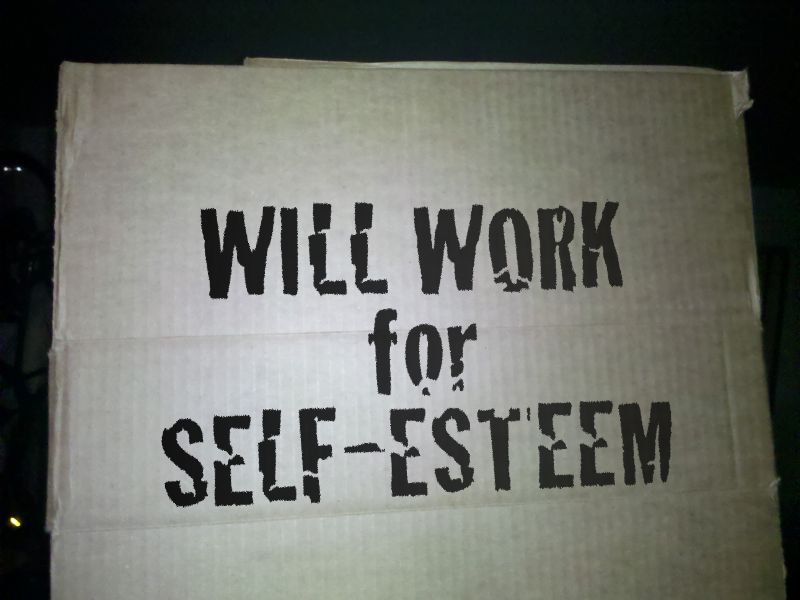
When I pulled into the parking lot, she was standing by the road holding a cardboard sign. A quick glance over my shoulder caught the words “Single Mom” and “Will work for Xmas.”
Completing my purchases, I requested cash back and stuffed it in my jacket pocket where I could reach it easily. I tossed my purchases in the back seat and started the car.
She stood on the snow piled to the side of the road, the sign held high before her face, like a shield to deflect the judgment of affluent shoppers. I pulled up to the light at the edge of the parking lot and pushed the button to open the passenger window. She didn’t move, and I wondered if she noticed me.
I called out, “Merry Christmas,” she lowered the sign and turned her head. Under her hood, her face looked older than I expected. I wondered how many kids she had, and how old they are. She started to climb down the snow bank, moving slowly, limbs nearly paralyzed from the cold. I leaned across the seat and stretched my arm out.
“My feet are so cold,” she said, reaching slowly in to accept my meager offering. I smiled weakly and nodded. The light turned green and I called out “Merry Christmas” again as I pulled away.
This encounter affected me. I spent a lot of time thinking I should have given her more money, wishing that my business had been in a better place. I thought that maybe I should have given her a ride somewhere, bought her some food, done something. But what?
After Christmas dinner, I told the story to a good friend over tea.
Never mind that it was Christmas Eve, why should anyone ever have to stand outside, shivering and shame-filled, hoping for a handout? How did our society fail?
My friend wisely pointed out that we are responsible for our own reality. We can’t control circumstances, but we do choose how we react to them. Our decisions and actions have consequences. This is true for everyone, including Sign Lady.
Is it sad that Sign Lady was begging on Christmas Eve?
Yes.
Should I (or any of the hundreds of other people who drove by that day) done more to help her?
Yes.
Did she have to wait so long to ask for help, or in such a dramatic fashion?
No.
There is a societal failure here, but it isn’t about charity, or lack of opportunity.
The failure is that our educational system doesn’t teach people the difference between self-esteem and pride. People equate being wrong or asking for help with weakness. I know many smart people who mistakenly believe that being wrong is a failure. How many more believe that they should be able to do everything by themselves?
The reality is that asking for help fills a need: Givers need recipients. And you are worthy of help!
I needed a reminder of what it felt like to give. Sign Lady provided that.
I can’t know the circumstances that Sign Lady faced on her journey to the snow bank, but it’s a pretty safe bet that it took her a while to get there. She probably had many opportunities along the way to ask for help. Did a sense of pride hold her back?
Whether at work, school, business, or personal life, have you been reluctant to ask for help? In the last year I have struggled mightily with many areas of my fledgling my business because I thought “I should be able to do this myself.”
While I will probably make that mistake again, I am grateful for the reminders Sign Lady gave me.
- Givers need recipients.
- You are worth asking for help (and so am I).
I hope it’s easier for you to internalize those lessons than it has been for me.
Dear Lady with the Cold Feet and Cardboard Sign,
I don’t know anything about you, but I thank you. By doing what you did, you gave me a chance to give, something I desperately needed. You also reminded me that it’s OK to ask for help.
I sincerely hope your night and Christmas day got warmer, and that your future is filled with hope.
Now if I could just find a way to ease the guilt about not giving more…
Posted by TJ on December 11, 2010 · Leave a Comment
It would be great fun to start this post with the phrase, “I’m often asked what tools I use as a web developer, so I decided to write a blog post to answer that.” It would also be an outright lie, so I won’t do that.
Tools have been on my mind the last couple days, largely because my laptop just died. Also, writing this post would be an effective way to get another entry in SolidSmack‘s HP EliteBook Giveaway (you can enter their contest until December 19th, 2010 so click the link).

I have seen that machine, and it is beautiful. With a suggested retail price of $4899 it’s a lot more money than most casual users could ever justify, but the cool factor is through the roof.
Since my focus is helping small businesses manage their websites, I will devote a few (dozen) lines of text to hardware requirements.
The Computer
Nearly any modern computer will do, as long as it has a decent (not dial-up) internet connection. If you can run Windows XP or later (and by later I mean Windows 7, not Vista) and run a decent web browser (Firefox, Chrome, Safari, even Opera, but please stop using Internet Explorer) you can manage your WordPress site. (I don’t have any experience with Macs so I can’t tell you how old one has to be before it’s too slow to be effective.)
Yes, a faster processor and more RAM will improve your Internet “experience” but the latest and greatest hardware isn’t critical unless you plan to edit a lot of photos, audio or video to support your website. If you have to buy one, a solid laptop will run you $500 to $600, but a $350 model will do the job. If you are on a really tight budget, a netbook will work, but they have other limitations.
Input Devices
If you are writing a lot of blog posts (and you should be if you intend to promote your business effectively), you will need to be able to enter information efficiently. That means typing and pointing and clicking.
Mouse
I will be blunt: touchpads suck. (Indignant Mac users may rant in the comments section.) Yes, newer ones let you scroll, but click-and-drag and right-click actions are hard to perform. Sleeves and palms brush them and screw up your typing. You shouldn’t have to concentrate on the mechanics of performing actions, you should just be able to DO them.
If you are working with a laptop or netbook, you must get a real mouse.
Just order plain coffee instead of a latte for four visits and spend the $10 on an optical mouse with retractable cord. It will pay for itself in under an hour (unless you value your time at the U.S. minimum wage from 1987, in which case you should figure about three hours).
Keyboard
If you must take the bargain basement route, keep in mind that a netbook keyboard is smaller than a standard keyboard. It will take a touch typist a while to adapt to the smaller key spacing. Unless you are extremely comfortable with your keyboard or you do 100% of your work in coffee shops, get a keyboard to keep at your workspace.
I have spent enough years at computers that I have become a keyboard snob. (Most laptop keyboards put the delete key in the wrong place). I keep a full-size keyboard in the car, and yes, I do carry it into the library with me. (I’m more concerned with productivity and less worried about looking like a dork.) You don’t need a fancy ergonomic keyboard with buttons to launch email, control speaker volume, or start the espresso maker. Any decent office supply store will have a basic keyboard for $12 to $15.
Spend that extra money on yourself. You’re worth it.
The Monitor
If you think of your computer like a kitchen for concocting blog posts, then the monitor is your counter space. Can you imagine trying to cook a full-blown Thanksgiving dinner in a kitchen where the only counter space is 18 inches between the stove and the refrigerator? It can be done, but it’s not easy and it isn’t fun.
I have friends who do amazing amounts of work on a netbook, but they struggle with it:

WordPress can work with 1024 x 768 resolution in most browsers, but it’s tough. The menus on the left take a lot of space, and the editing box for writing posts is eclipsed by the control boxes on the right. There are workarounds, but the effects can range from mild annoyance to near-defenestration.
Just as adding counter space to your kitchen makes it easier to do more, adding screen space makes it easier to manage your blog.
If I’m a keyboard snob, I’m a monitor elitist.
You might be tempted to jump on the first deal you find for an inexpensive flat-panel LCD monitor. Before you plunk down your plastic, I suggest you check an under-rated specification: vertical resolution. Why? These screen shots show what writing this post would look like on different displays.
Note: Some images were cropped slightly to make up for the Windows menu bar. Also, other browsers (this is another reason to STOP USING INTERNET EXPLORER) leave even less room for your page, even before adding extra bloatware like the Yahoo! or Google toolbars.
Although not quite evil, monitor manufacturers have been doing something not very nice to boost sales: they dumb down displays to make them look like they are good for DVD movies. Yes, movies do fit nicely on them, but they’re less than optimal for creating content.
The reality is that most new widescreen monitors make your display a lot wider, but not much taller. If you can afford it, get a monitor with more vertical resolution. You will spend less time scrolling and more time doing important things.
Conclusion
Your website and blog should work for you, not the other way around. If you don’t live on the computer or edit photos or video for a living, you shouldn’t spend a lot of money on a computer. Sure, toys like HP’s new EliteBook make me drool, but I don’t do high-end CAD these days. A few dollars spent sensibly can help your website work for you without breaking the bank.
Posted by TJ on December 9, 2010 · 2 Comments
Many people are picky about how they interact with Twitter, and I’m plunked down firmly in the center of that camp.
My laptop (where my trusty TweetDeck desktop application is installed) died a couple days ago. I prefer a multi-column Twitter interface, so using the “New” Twitter web interface while I wait for my laptop to get fixed is not an option.
I’m generally not an early adopter, but this was a perfect excuse to try the new TweetDeck extension for Google’s Chrome browser.
My Experience
The installation was straightforward, with a couple of mouse clicks it was up and running. To launch the application, just open a new (empty) browser tab and click the TweetDeck icon. I was a bit surprised that it didn’t even prompt me for a userid or password. I suspect that it recognized my Twitter account because I sometimes use it to log in to other web services.
I didn’t try the Facebook integration, but informal research (OK, I read a tweet about it) indicates that it’s “tight.”
The Good
- The general compose box functions well. It makes it very easy to update from multiple Twitter accounts.
- The reply box is embedded in the column above the tweet I’m responding to. Nice touch.
- Ability to drag columns to reorder is helpful, but this still needs some refinement.
- The automatic link shortening (using j.mp) is quick and smooth.
- Detailed profile information is helpful, but lacks the thread view capabilities.
- It has the same familiar charcoal background with light text. I like this color scheme but it’s not for everyone.
- The visual notification box is gone. This could be a pro or a con, depending on your preference. The desktop application gave you the ability to change its appearance, location on the screen, or just plain turn it off.
The Not-so Good
Like any new software, it isn’t perfect. I suspect it will get better over time.
- There is no button to view a conversation thread. I use this ALL THE TIME on the desktop app. This #FAIL may force me to Hootsuite until my laptop is fixed. @ToddWaller did point out that you can see a thread history when you reply to a tweet, but sometimes I just want to lurk.
- Sometimes the background and screen flash while I’m typing in a compose box. This is quite annoying.
- I couldn’t find a way to pause or slow the main stream, even when I’m scrolled down. In the short time I used this, I clicked on the wrong link a few times as the target tweet slid out from under the cursor.
- Where’s the filter? This is another feature I use often on the desktop application.
- Audible notifications are gone. In the desktop application I set them tell me about new @-mentions and direct messages. Without the pop-up notification window, this is even more important.
- Customization ability is non-existent. The desktop application allows a lot of configuration options, update speed, accounts, notifications, link shortening, and more.
Conclusion
I’m not shy about admitting that I like TweetDeck. Their first effort at browser integration is a solid start. I’m not ready to switch, but it shows a lot of promise.
Have you used it? Let me know what you think.
Posted by TJ on December 5, 2010 · 1 Comment
As software goes, WordPress is pretty stable and reliable. However, it relies on computers and it runs in a world of people. Things can go wrong. An internet connection could fail during an update, there could be a hardware problem with your server, your site could be hacked, or you could just plain break something while playing with new features (I do this more than I care to admit).
Fortunately, you can improve your security and gain peace of mind. These easy-to-use (and free!) tools and techniques will help.
1. Back Up Your Site
Just as you have an homeowner’s insurance for your house (or renter’s insurance for your apartment), you should have a policy for your website as well. There are two pieces of a WordPress website, and they both need to be backed up: the database and the installation.
The database contains the content (posts, comments, and pages, and information about your site configuration). The installation consists of the WordPress software, themes, uploads (like pictures or mp3 files), and plugins.
A weekly backup is sufficient for many sites, but if you add content often you might want to do it daily. Some large sites with multiple authors and aggressive publishing schedules will back up hourly.
I recommend enabling the email options in the plugins below to give yourself a little extra security. If you don’t want to clutter your inbox, set up a rule or filter to move them into a separate folder. You could also create another email account (gmail is good for this) and direct your backups to that.
Back up the Database
The WP-DB-Backup plugin is a useful tool. In addition to scheduling your database backups, it lets you create a full database backup on demand and download it to your computer. It also lets you decide whether to include additional tables (that other plugins may install).
Back up the Installation
I like the WordPress Backup tool. It lets you schedule backups on an hourly, daily, or weekly basis. It guards your uploads, themes, and plugins by creating separate zip files of each type of content and storing them in a directory on your site. Again, I suggest turning on option to email a backup to yourself. (If you have a lot of images, your uploads backup file can quickly grow too large for email.)
I always back up a client’s database and installation before I start any work. It’s cheap insurance against the little things that can go wrong.
2. Keep WordPress and Plugins Updated
WordPress is great, but it isn’t perfect. There are bugs, developers keep adding features, and hackers come up with new ways to attack your site. Updates fix bugs, patch holes in security, and add new features.
This became easy with newer versions of WordPress. If you have an older version (before WordPress 2.7) it’s more involved (you should call me, I can help).
I could go into a lot of detail about it, but I’m lazy and Wendy Cholbi just wrote about that (with a video!) last week.
3. Hide Your Dust with Maintenance Mode
Sometimes a store will put up a sign that says “Pardon Our Dust” while they are remodeling. Did you know that you can do just that with WordPress?
Adam Warner goes into detail about Maintenance Mode, a great trick that many WordPress users don’t know about. It lets you “hide” your site to visitors while you work on it. I have used the tool successfully (and probably should more often). If you are new to WordPress, that article is worth a look.
What’s the takeaway? You put a lot of time and energy into your website. These tips can help you protect your investment and reputation.
« Previous Page — Next Page »